Showing posts with label sqlserver. Show all posts

Friday, April 15, 2016

Use SQL Compact Server 3.5 with Windows CE 7

Background

I have a .NET CF 3.5 app running on Windows CE 6 that uses SQL Server compact 3.5.
I want it to run on Windows CE 7.

Here is an overview of how I achieved that.

Attempt 1: No modification


Simply build the code with the SDK of the new platform and deploy.
Result: 
- FAILED ! Native exception occurs at runtime (Native.GetKeyInfo ...)

Attempt 2


As explained in this article, double check the native sql dll versions (sqlceca35.dll, sqlcecompact35.dll, sqlceme35.dll, ...) and ensure that they match with the version of the System.Data.SqlServerCe assembly used in your .NET application.
For your information:

  •  v. 5386 : SQL Compact server 3.5 RTM
  •  v. 5692 : SQL Compact server 3.5 SP1
  •  v. 8080 : SQL Compact server 3.5 SP2


You can also take a look at this article for hotfixes list.

Result:
FAILED ! Did not work either, even with the same versions of dlls. The same exception occured.

Attempt 3 


Uninstall all SQL Server compact versions from your computer, reboot and install SQL Compact server 3.5 SP2.
Update the binaries in your application and try again.

Result:
FAILED ! New issue !

The application is trying to load native components of version 8154 that are incompatible with ADO.NET provider of version 8080

It's like the OS is loading its own set of native sql dlls instead of the ones in the application directory...

Attempt 4


If you don't already have it, install Windows CE 7 from here (warning: it is a loooong process. Install it only for the required cpu architecture).

In your project, use the native dlls located in C:\WINCE700\others\sqlcompact\<cpu>\retail and the assembly in C:\WINCE700\others\sqlcompact\managed\retail.

Result:
- SUCCEEDED ! The application runs flawlessly now !

Conclusion


After checking the versions of the dlls used in attempt 4, I found out that the binaries have been updgraded to 8154. I did not find any installer of SQL Server Compact 3.5 for Devices with this version (maybe I should have tried harder).
Know that for some people, attempt 2 resolved the issue but the only solution that worked for me was the last one.

Wednesday, March 2, 2016

Convert SQL Server Compact database (*.sdf) to SQLite3 (*.db)

To do this, you will need:


  • Visual Studio 2012 or 2013 (2010 would probably work too. However, it won't work with 2015 as Microsoft dropped the support for SQL Server Compact databases)

In Visual Studio:


  • Open your project (or create one) with Visual Studio.
  • On the left-side panel, open Data Sources and click on Add New Data Source -> DataBase -> DataSet
  • If your database is based on SQL Server Compact 3.5 or older:

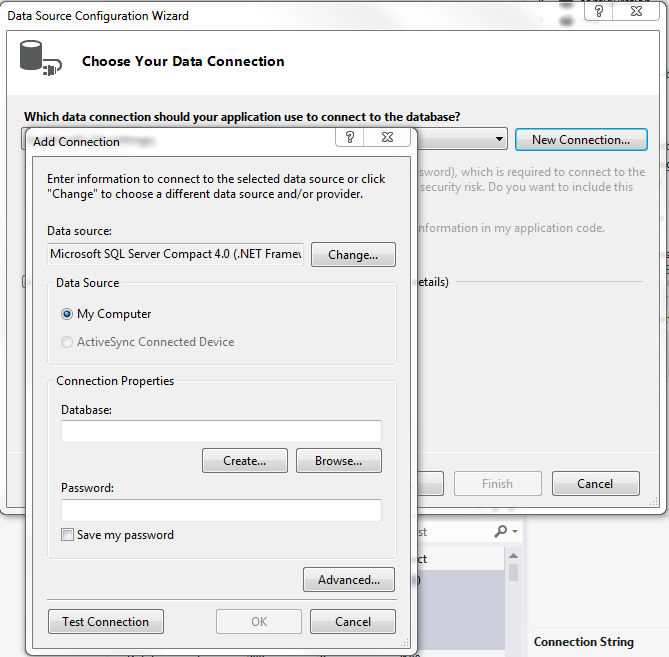
Click on New Connection:


Make sure SQL Server Compact 4.0 is selected.
Click on Create and name a new database. Validate with OK.
Back to the wizard, click now on New Connection and Browse. Pick your database file.
Validate.


  • If your database is based on SQL Server Compact 4.0:


Click on New Connection then Browse and pick your database file.

You should now see your database in the Server Explorer (left panel).


After rebooting your Visual Studio, you should now see a new icon in the Server Explorer :


  • Click on the new blue icon.

Right click on your database (the original) and select the following entry:


Follow the instructions.

The internal scripts will generate a *.sql output with all of the instructions required to create the database back.

With SQLite3 tools:


  • Install the sqlite3 tools from here.
  • Open a command line (ensure that the location of the sqlite tools is in the path).
  • Finally type:

sqlite3.exe DB.db ".read db.sql"
(replace db.sql with the name of your generated sql file)

 
biz.