Showing posts with label beaglebone. Show all posts

Friday, July 21, 2017

Build U-Boot for BeagleCore

BeagleCore is a variant of the BeagleBone Black. It consists of 2 modules : BCM1 and BCS2:
* BCM1 is the System-On-Module that contains most of the BeagleBone Black design
* BCS2 is a mainboard with the form factor of the original BeagleBone Black. The BCM1 is soldered on BCS2 and the pair is an equivalence of the BBB.

Recently, I needed to run U-Boot on a custom board built with a BCM1. I followed some tutorials on the internet and the result was that U-Boot never started. After some investigations, I found out that the EEPROM that contains BBB identification is not present on BCM1, but is on BCS2 instead. The consequence is that U-Boot cannot identify the board and the initialization procedure fails.
In this post, I will detail every step to make U-Boot run on BCM1.

Note: All of these steps were performed on Windows 10 with bash (ubuntu terminal).

Install tools

sudo apt-get install gcc-arm-linux-gnueab

Create an alias to simply following commands


alias armmake='make -j8 ARCH=arm CROSS_COMPILE=arm-linux-gnueabi- '

Grab U-Boot

git clone
git://git.denx.de/u-boot.git u-boot
cd u-boot

Edit the code


Usually, we do a patch for these type of things. I'll try to post it later.
We will modify some parts of the code to stub the EEPROM so that U-Boot behaves exactly like it was a BBB board.

Open board_detect.c and add the following right after the #include statements:
static struct ti_common_eeprom stub_eeprom = 
{
    TI_EEPROM_HEADER_MAGIC,
    "A335BNLT",
    "00C0",
    "1716BBBK2450",
    "",
    {{0x11,0x22,0x33,0x44,0x55}, // Dummy Mac addresses
     {0x11,0x22,0x33,0x44,0x55},
     {0x11,0x22,0x33,0x44,0x55}},
    11749353662462671858,
    12656917672993063804
};

Replace the content of the function 'eeprom_am_set' with
{
    return 0;
}

Do the same with 'eeprom_am_get'.

Open board_detect.h.

Replace TI_EEPROM_DATA definition with:
 #define TI_EEPROM_DATA ((struct ti_common_eeprom *)\
                &stub_eeprom)

Config & Compile

armmake  distclean
armmake am335x_boneblack_defconfig
armmake

Copy to an SD Card


Format an SD card to FAT32 (boot flag ON).
Go to your U-Boot directory and copy MLO to SD Card first.
Then copy u-boot.img to SD-Card.

And there you go ! U-Boot shall start normally.
Here is an example of my uEnv.txt :
bootpart=0:1
bootdir=
bootfile=uImage
fdtfile=am335x-boneblack.dtb
fdtaddr=0x80F80000
loadaddr=0x80200000
optargs=quiet
mmcdev=0
mmcroot=/dev/mmcblk0p2 ro
mmcrootfstype=ext4 rootwait
loadbootenv=load mmc ${mmcdev} ${loadaddr} ${bootenv}
loadfdt=load mmc ${bootpart} ${fdtaddr} ${bootdir}/${fdtfile}
uenvcmd=load mmc 0 ${loadaddr} ${bootfile};run loadfdt;setenv bootargs console=${console} ${optargs};bootm ${loadaddr} - ${fdtaddr}


Friday, April 7, 2017

WCE7 : Customize your BSP

We suppose here that all the components required for your OSDesign are already in the catalog of your source platform. This is basically the case when you clone an existing BSP.
To customize your BSP, you will have to check the features you want to include in your OS image. Additionally, you can add registry settings, files or even add a new device driver if required (this is not explained here). This page gives an overview of a BSP customization for the BeagleBone Black platform.


Select your features


BSP features

Open Catalog Items View and unfold Third Party->BSP-><your BSP name>.
You have here all platform-specific components that you can reuse on your target platform.
Here is a picture of a possible selection for the BBB:


Core OS

Open Catalog Items View and unfold CoreOS->Windows Embedded Compact.
The core OS features are platform-independent which means that they can be used on any target platform. Some of these options are related to the BSP features (via SYSGEN_xxx variables) and that's why some checkboxes are already checked (with a green square usually).
Below is an overview of the checked features for the BBB. We excluded IE7 support, media players, audio decoders, battery support... :


Add files to your BSP

If you want to add some files to your BSP, they need to be placed in C:\WINCE700\platorm\<your bsp>\Files.
All files located in this directory will be copied to the build release directory during build process.
To manage the files you want to copy to your output directory, you need to edit OSDesign.bib (you can also do this from C:\WINCE700\platorm\<your bsp>\Files\PLATFORM.BIB but it would applied to all OSDesigns).
For instance, if you want to add CoreCon files, you should append the following lines under FILES section:
eDbgTL.dll            $(_FLATRELEASEDIR)\eDbgTL.dll                    NK    S
TcpConnectionA.dll    $(_FLATRELEASEDIR)\TcpConnectionA.dll            NK    S

Reminder: All of these files need to be located in C:\WINCE700\platorm\<your bsp>\Files.
Setting Description
NK NK memory block specified in config.bib file (output NK.bin image)
S System file (will be located as system file in \Windows directory)
H Hidden file
K Kernel file
(for example, use SHK for a hidden system file located in kernel space).


What if I put these lines under MODULE section ?

The files put in MODULES will be processed by romimage so that the executable can be executed in eXecute In Place (XIP) from the ROM image. If you are not interested in that, put files in FILES section.

KITL and serial Debug

As explained here
When launching an OS image from the target device’s local storage, built with the above debugging helper components enabled, the OS image may not be able to function as intended and may not be able to complete the boot process, such as:
  • When an OS image is generated with KITL component enabled, it attempts to establish connection with an unavailable KITL connection, which causes the OS not able to complete the boot process.
  • When an OS image is generated with the serial debug component enabled, the serial debug component capture one of the available serial port, making the port unavailable to the device’s application.
So go through the following steps before building the image:
  • Open your project properties and disable KITL. Clik OK to apply

Additional registry settings


FTPD settings

Add these lines to your OSDesign.reg file to allow unauthenticated connections with anonymous credentials.
Set the default directory to root dir to give an access to all files remotely.
[HKEY_LOCAL_MACHINE\COMM\FTPD]
    "IsEnabled"=dword:1
    "UseAuthentication"=dword:0
    "UserList"="@*;" 
    "AllowAnonymous"=dword:1
    "AllowAnonymousUpload"=dword:1
    "AllowAnonymousVroots"=dword:1
    "DefaultDir"="\\" 

.NET CF runtime error bypass

The following error can happen at the execution of a .NET application after boot
.NET CF Initialization Error, The application failed to load required components. If the .NET Compact Framework is installed on a storage card... Support info:
-2147438590 (8000B002)
However, if we deploy an application from a PC to the remote device and start an app again it will work. This strange beahavior is due to a registry setting that is updated when we deploy an application.
To avoid this issue, edit OSDesign.reg and add the following lines
[HKEY_LOCAL_MACHINE\SOFTWARE\Microsoft\.NetCompactFramework\Managed Debugger]
    "AttachEnabled"=dword:0
And add the following files to your OSDesign (in C:\WINCE700\platform\<your BSP>\FILES):
%COMMONPROGRAMFILES%\Microsoft shared\CoreCon\1.0\Target\wce400\armv4i\eDbgTL.dll
%COMMONPROGRAMFILES%\Microsoft shared\CoreCon\1.0\Target\wce400\armv4i\TcpConnectionA.dll

TPS65217 : The power management chip on BBB

TPS65217 is mounted in its C revision on BeagleBlone Black rev C and BeagleCore. This chip is in charge of power up/ power down and handles the voltages needed by the board.
For this note, we will ignore the push button action on the chip as we are not using it.


Features

TPS65217 provides:
  • 3 step down converters (up to 1,2A output each)
  • 2 LDOs (+ 2 load switches configurable as LDOs): 1&2: 100mA, 3&4: 400 mA (rev C)
  • 1 linear battery charger
  • White LEDs driver
  • Power path
It can be configured through its i²C interface:
  • all rails, power swtches, LDOs can be enabled/disabled
  • power up/down sequences can be programmed (non-persistent, must be programmed from chip startup)
  • over temperature limits

Power up/down sequence

Power up

The default power up sequence can work with any type of application. It is defined by strobes and delay times. On each strobe (from 1 to 7) the rail that is attached to the strobe is powered up. After a delay (from 1 to 10 ms), the next strobe occurs and so on. Several rails can be attached to the same strobe but a rail can be attached to 1 strobe only.
The power up sequence occurs when any power source is ON (USB/AC adaptor) and PWR_EN pin is asserted.

Power down

It follows the reverse power up sequence but with STROBE7 occuring first and continuing down to STROBE1.
If the application requires all strobes to occur at the same time (no delay), INSTDWN bit in SEQ6 shall be asserted.
The power down sequence occurs when any of the following events occurs:
  • SEQDWN bit is set
  • PWR_EN is pulled low
  • nRESET is pulled low
  • A fault occurs in the IC

Strobe 14/15

The strobes are not handled by the sequencer. They are used to control rails that are always ON and shall be powered up as soon as the device exits OFF state. The strobe can only be assigned for LDO1 and LDO2 rails.
For power down, the strobes occurs only if the OFF bit is set which means that they are still active in SLEEP mode.


Power good

These signals are here to indicate if an output is in regulation or at fault. They are monitored at all time and if a fault occurs, all output rails are powered down and the device enters OFF state.

Power path

The power path allows simultaneous and independend charging of the battery and powering of the system. The battery can be charged from USB or AC.
The power path prioritizes the AC over USB and both over battery input to power up the system.


Device functional modes

Mode Description
OFF PMIC is completely shut down with the exception of AC/USB monitoring inputs. To enter OFF state, OFF bit in STATUS register shall be asserted and then, PWR_EN pin whall go low. OFF state can only be enetered from ACTIVE state
ACTIVE All power rails are operational, and i²C is active.
SLEEP Low power mode. All power rails are turned OFF with the exception of LDO1 (but with a current of 1mA). To enter SLEEP state, OFF bit in STATUS register shall be de-asserted (0) and then, PWR_EN pin whall go low.
RESET All power rails are shut down and registers are reset. Stays in this state for 1 sec before returning to ACTIVE.


Block diagram


Power signals assignments on BBB (non-exhaustive)

Output Mapping Function
L1_VDCDC1 VDDS_DDR SDRAM
L2_VDCDC2 VDD_MPU
L3_VDCDC3 VDD_CORE
LS1_OUT VDD_1V8 SDRAM / MPU / ADC / USB / HDMI
LS2_OUT VDD_3V3A eMMC / EEPROM / USB / HDMI / LCD / nRESET / (BCM1 : Power Led) / HDMI / I2C0 (pull-up)
VLDO1 VIO / VRTC / VDD_S nRESET / Ext. Wakeup
VLDO2 VDD_3V3AUX Power Led
SYS1 & SYS2 SYS_5V User Leds / HDMI / USB
Moreover, the signal VDD_3V3B is created from SYS_5V and VDD_3V3A (Enable). It is used for : JTAG / UART0 / µSD / LAN / HDMI CEC.

WCE7 : Read CPU registers on BeagleBone

Sometimes, it may be useful to watch the CPUs registers to confirm that a peripheral is configured properly or to monitor a signal change from the CPU point of view.
Here are some hints to achieve that easily.

Monitor MPU registers

MPU is the central processing unit in charge of interrupt handling. To read its registers, use the following code:
#include "am33x_irq.h" 
#include <am33x_interrupt_struct.h>

// Interrupt context
static AM33X_INTR_CONTEXT  s_intr;
AM33X_INTR_CONTEXT const *g_pIntr = &s_intr;

void somefunction(void)
{
   UINT32                        irqSIR, irqINTC_ITR_3, irqPENDING_IRQ3;
   PHYSICAL_ADDRESS pa;

   // Get interrupt controller and GPIO registers' virtual uncached addresses
    pa.QuadPart = GetAddressByDevice(AM_DEVICE_MPU);
    s_intr.pICLRegs = (AM33X_INTC_MPU_REGS*)MmMapIoSpace(pa, sizeof(AM33X_INTC_MPU_REGS), FALSE);
    if (s_intr.pICLRegs == NULL)
    {
        DEBUGMSG(1, (L"ERROR: Am3xxGpioInit: Failed map MPU controller registers\r\n"));
    }

    irqSIR = INREG32(&g_pIntr->pICLRegs->INTC_SIR_IRQ);
    irqINTC_ITR_3 = INREG32(&g_pIntr->pICLRegs->INTC_ITR3);
    irqPENDING_IRQ3 = INREG32(&g_pIntr->pICLRegs->INTC_PENDING_IRQ3);

    // Activate IRQs for GPIO0A
    //OUTREG32(&g_pIntr->pICLRegs->INTC_ILR[96], 0U); // Route to IRQ and set max priority
    //OUTREG32(&g_pIntr->pICLRegs->INTC_MIR3, irqMIR3 | 0x1);
}


Monitor GPIO registers

#include "am33x_irq.h" 
#include <am33x_interrupt_struct.h>

// Interrupt context
static AM33X_INTR_CONTEXT  s_intr;
AM33X_INTR_CONTEXT const *g_pIntr = &s_intr;

void  somefuncion(void)
{
    PHYSICAL_ADDRESS pa;

    // Bank 0
    pa.QuadPart = GetAddressByDevice(AM_DEVICE_GPIO0);
    s_intr.pGPIORegs[0] = (AM3XX_GPIO_REGS*)MmMapIoSpace(pa, sizeof(AM3XX_GPIO_REGS), FALSE);
    if (s_intr.pGPIORegs[0] == NULL)
    {
        DEBUGMSG(1, (L"ERROR: Am3xxGpioInit: Failed map GPIO0 controller registers\r\n"));
    }
    // Bank 1
    pa.QuadPart = GetAddressByDevice(AM_DEVICE_GPIO1);
    s_intr.pGPIORegs[1] = (AM3XX_GPIO_REGS*)MmMapIoSpace(pa, sizeof(AM3XX_GPIO_REGS), FALSE);
    if (s_intr.pGPIORegs[1] == NULL)
    {
        DEBUGMSG(1, (L"ERROR: Am3xxGpioInit: Failed map GPIO1 controller registers\r\n"));
    }
    // Bank 2
    pa.QuadPart = GetAddressByDevice(AM_DEVICE_GPIO2);
    s_intr.pGPIORegs[2] = (AM3XX_GPIO_REGS*)MmMapIoSpace(pa, sizeof(AM3XX_GPIO_REGS), FALSE);
    if (s_intr.pGPIORegs[2] == NULL)
    {
        DEBUGMSG(1, (L"ERROR: Am3xxGpioInit: Failed map GPIO2 controller registers\r\n"));
    }
    // Bank 3
    pa.QuadPart = GetAddressByDevice(AM_DEVICE_GPIO3);
    s_intr.pGPIORegs[3] = (AM3XX_GPIO_REGS*)MmMapIoSpace(pa, sizeof(AM3XX_GPIO_REGS), FALSE);
    if (s_intr.pGPIORegs[3] == NULL)
    {
        DEBUGMSG(1, (L"ERROR: Am3xxGpioInit: Failed map GPIO3 controller registers\r\n"));
    }
}

OALPAtoUA vs MmMapIoSpace

Both functions achieve the same goal so why use one instead of the other ?
OALxAtoxA functions are reserved for OAL use and can not be called from drivers (if you try, you will end with a link error saying that OALPAtoVA symbol has not been found). This is also why some parts of code use the following code:
#ifdef OAL
   // OALxAtoxA business
#endif
#ifdef DEVICE
  // MmMapIoSpace business
#endif
MmMapIoSpace is the function to use in drivers.

Thursday, April 6, 2017

WCE7 : Setup tools to tweak the BSP

The following tools need to be installed (in this order):
  • Visual Studio 2008 Professional ENU
  • Visual Studio 2008 Professional SP1
  • Windows Compact 7 : Be sure to check Platform Builder option ! Don't install the binaries for all hardware architecture. Instead, pick ARMv7 only.

Note: You need to a valid license ! If this is the first use, you can register on Microsoft Windows Embedded Compact 7 web page and get a 180 days demo license.


OS Customization tools

AutoLaunch4ce

Install Autolaunch v310 (also available in the network directory or downloadable here).
Add to your OS Design from Catalog View, in Third Party->Embedded101->Check all checkboxes but CoreCon. It seems that when started from the AutoLaunch, the deployment speed slows down significantly.
AutoLaunch is a an executable that will start automatically at boot. It will look in registry for executables to run at OS startup.
The following lines will be automatically added to your OS image to start CoreCon and remote display (cerdisp) automatically at startup:
[HKEY_LOCAL_MACHINE\Startup]
    "Process0"="ConmanClient2.exe"     
    "Process0Delay"=dword:1388
    "Process1"="cerdisp -c" 
    "Process1Delay"=dword:2710

The startup delay can be modified to any value (0 included).
If other applications need to be started at boot, simply add them like that:
[HKEY_LOCAL_MACHINE\Startup]
    "Process2"="App_01.exe" 
    "Process2Delay"=dword:3A98
    "Process3"="App_02.exe" 
    "Process3Delay"=dword:4E20

Note: Process0 and Process1 are reserved to CoreCon and remote display. Do not use them for other applications.
Known Issue: If you are running under a french operating system, the postlink.bat script located in autolaunch project will not complete due to a path issue. You will end with a missing file (DeviceAgentTransport.dll in my case) in the global output result.

To resolve this issue, replace
"%Program Files%/Common files"
string with
%COMMONPROGRAMFILES%
in postlink.bat. If you program files directory is named
"Program Files (X86)"
, use this replacement string instead:
%COMMONPROGRAMFILES(x86)%
. Re-launch the build.


Credits

http://www.embedded101.com/Blogs/SamuelPhung/entryid/207/Compact-7-Getting-Started-Part-3-Develop-an-OS-Design

WCE7 : BeagleBone Black boot procedure

In a previous article, we described how windows CE theoretically boots. Now, we will focus on BBB's community BSP.

Release files

A release of BBB Windows CE includes 3 files:
  • MLO
  • ebootsd.nb0
  • nk.bin
The three of them are generated by ROMIMAGE (which means that they all have their own TOC).

MLO

This file must be the first file copied to the SD card after being formated.
Behind this name hides an XLDR loader executable small enough to fit into the 63kb of CPU's internal RAM.
In fact, this is the line that generates MLO:
copy /b $(_SRC)\xldrtocsd.raw + $(_TGT)\xldrsd.nb0 $(_TGT)\MLO
A pre-built binary (xldrtocsd.raw) is combined with the result of XLDR build into MLO.
Basically, MLO will initialize the strict minimum on the CPU to be able to copy the ebootsd.nb0 to external RAM.
Here is a complete overview of what XLDR does :

Eboot

Eboot is the standard bootloader of Windows CE. It is customized here to the BBB platform.
It initializes much more peripherals and offers to user an input to configure the boot settings.
Once configured, the boot arguments are saved to IMAGE_SHARE_ARGS_PA memory address so that the operating system can read them.
At the end of processing, all peripherals are turned off by disabling their clock.
Basically, eboot will load nk.bin to external RAM.
Here is a complete overview of what eboot does :

NK.bin

This is the complete image of Windows CE including OAL, kernel.dll and other system binaries.
The startup procedure is similar to eboot. An important part of the boot is not provided in BBB BSP project (kernel.dll) but it is linked from a pre-built binary. With this undefined part, here is what the nk.bin boot procedure looks like :

Saturday, March 25, 2017

Interfacing eMMC

The eMMC is a cheap storage stolution that is very common in embedded systems. It is made of NAND flash memory and a controller.
An eMMC can be used as boot memory when the on-chip ROM code is not sufficient (typically with platforms like linux, windows CE). This is how I had to use it lately, on the popular BeagleBone Black. I struggled a little bit because of the complexity of the protocol (see JEDEC) and because of the differences with the SD card that can also be used as a boot device on the BBB.

SD/SDIO/MMC ...

The first confusing thing comes from the abbreviations related to this type of memory.

  • SD : "Secure Digital", is a non volatile memory developed by the SD Card Association (SDA)
  • SDIO : "Secure Digital Input/Output" is an extension of the SD specification to support IO devices on the SD card slot (GPS, modem, ...)
  • MMC : "MultiMediaCard" is a memory card that can be used by a system that supports SD cards. EMMC is a variant of MMC with a different form factor. Instead of a removable card, it is a soldered chip on the electronic board.

What about SDHC ?

"Secure Digital High Capacity" identifies cards with 4 to 32 Gb storage space.

And UHS ?

"Ultra High Speed" bus. Different classes exist to specify the bus speed characteritics. These classes have nothing to do with the command classes that are used in the protocol.

Connectivity

The communication between host and SD uses 1 command line, [1-8] data lines and 1 clock line. The command line is basically used to read/write the registers of the card controller or to start/stop a read/write operation on the card memory. Data lines are used to read/transmit data following a read/write command.

Protocol

  • Host sends a command serially on command line
  • Card gives a response on the command line
  • Data is transferred on data lines if necessary
  • Card holds the data 0 line low to indicates that it is busy processing the received data
  • If data has been transferred, a CRC status is sent back by the card at the end of transmission on data 0 line

There are 2 types of data transfer:
  • Sequential (only with single data line)
  • Block-oriented

The sequential transfer consists in sending data continuously on data line until a stop command is sent on command line.

The block-oriented transfer data block plus CRC on data lines. The transfer is stopped when a stop command is sent on the command line or when all block have been sent if CMD23 has been used before the start of transmission.


 Data format

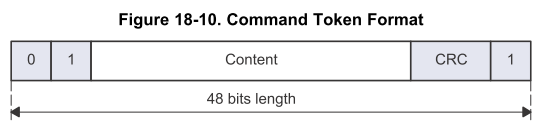
A command is a 48 bits frame.


The format of a response frame depends on the command. There are 6 types of responses (R1, R2, ..., R6).


Finally, the data transmission scheme depends on the number of data lines.

Card registers

The following registers can be accessed by the host:

  • OCR : Operating Conditions Register. Defines the voltage profile of the card and provides some status bits.
  • CID : Card Identification Register. Contains manufacturer information as well as a unique identification number (assigned by JEDEC)
  • CSD : Card Specific Data Register. Defines the data format, timings, etc. Some of these values can be modified by issuing a CMD27. There is an extended version of this register for high capacity (SDHC) cards.
  • RCA : Relative Card Address Registers. It carries the card address that is published during identification. 
  • DSR : Driver Stage Register. It can be optionnally used to improve the bus performances.
  • SCR : SD Card Configuration Register. It gives information about the special features implemented into a specific card.

Commands

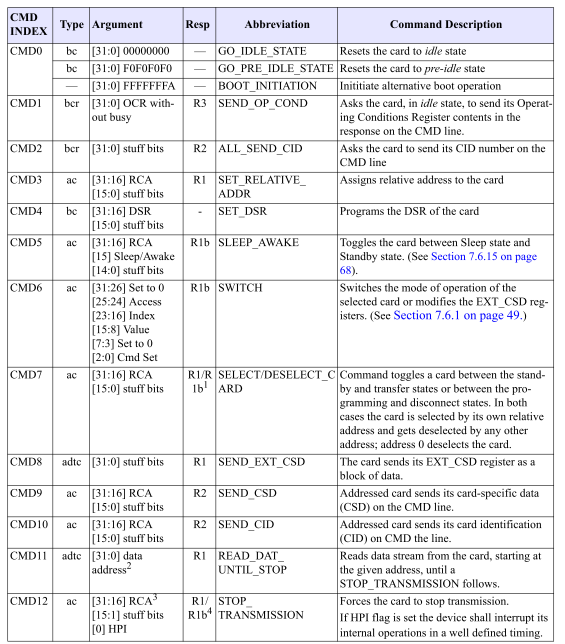
The JEDEC defines a set of commands that are identified with a number (CMD0, CMD1, ...). Each of these commands achieves a specific action : CMD0 (GO_IDLE_STATE) resets the card to the Idle state. Although this set of command is available for SD and MMC, their usage differs depending on the type of card. For instance, CMD6 (SWITCH) is not used in a similar way. The full list of commands is available in JEDEC document, here are some of them (specified for the eMMC).

What is R1b type of response ?

R1b has exactly the same format as R1. "b" stands for busy and it indicates that a busy signal can be sent on data 0 line, as explained above. This busy signal is however optional.

Booting from eMMC

Depending on the operations done at boot on the SD interface, the card will switch to differents states.

Commonly, boot option 1 is used.
At the end of this diagram, with or without boot enabled, the card enters Standby state.The diagram below show how to switch to Transfer state (or back to Standby state from another state).

Sources:

  • TI AM335x reference manual
  • TN2918 of Micron

 
biz.